How To Get Sales Lead, Reward & Partner Notifications On Your Device Automatically
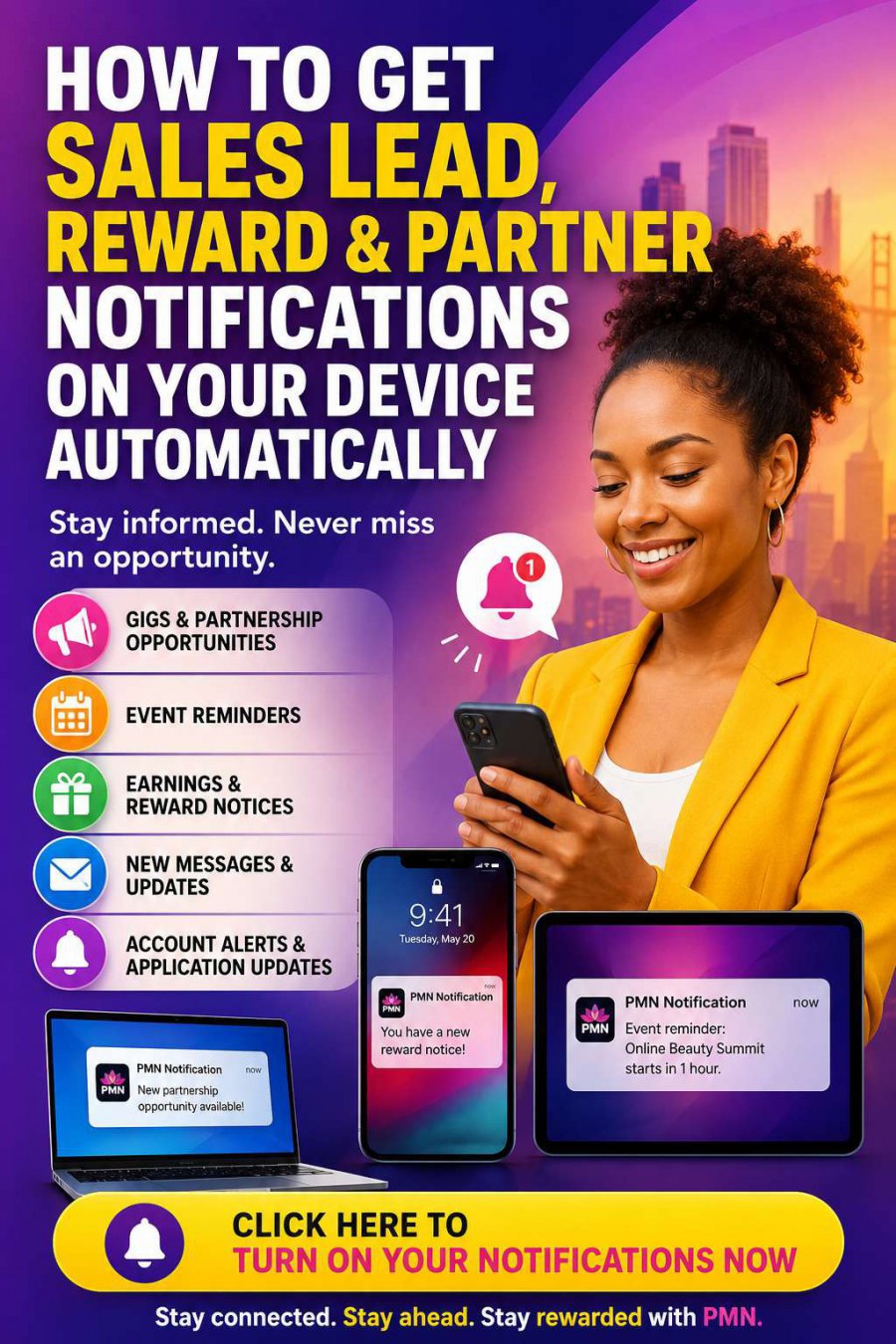
PMN Push Notifications help members receive important updates even when they are not actively using the Pamper Me Network website. Notifications may include gigs, partnership & promotional opportunities, event reminders, application updates, earnings & reward notices, account alerts and new messages. Click here to turn on your notifications now. What is a PMN Push Notification? A push notification is a brief alert delivered through your web browser to your computer, tablet or smartphone. The alert may appear through your device’s normal notification system, similar to notifications from other websites or apps. Do I need to be logged into PMN when a notification is sent? No. After notifications have been activated on your browser or device, you can receive a PMN alert even when the PMN website is not open. You must first sign in and enable notifications on that device. PMN’s notification system stores a separate browser subscription for each activated device. How do I activate Push Notifications? Sign in to your PMN account. Open the Notification Preferences page. Select Enable on This Browser. When your browser asks for permission, select Allow. Once permission is granted, PMN can send alerts to that browser. Your browser cannot be activated automatically. You must personally approve notification permission on each device. What will the notification look like? The exact appearance depends on your device. Windows computers The alert will normally appear near the lower-right corner of the screen and may also be saved in the Windows Notification Center. Mac computers The alert will normally appear near the upper-right corner and may remain available in the macOS Notification Center. Android phones and tablets The alert may appear at the top of the screen, in the notification tray or on the lock screen, depending on your phone settings. iPhones and iPads Supported iPhone and iPad users should: Add the PMN Notification Center to the Home Screen. Open PMN from the Home Screen. Sign in. Select Enable on This Browser. Approve notification permission. After activation, PMN alerts can appear through the iPhone or iPad notification system. What happens when I tap a notification? Tapping the alert will normally open the PMN Notification Center, your PMN inbox or the page connected to the message. When the message contains private account information, you may be asked to sign in before viewing the full message. Does the notification contain my complete private message? No. Push alerts are designed to contain only a short, non-sensitive summary. The complete message remains inside your secure PMN inbox. The PMN service worker retrieves the brief alert, while the full private content stays protected behind your PMN account login. Do I need to activate every device separately? Yes. Activating notifications on your desktop computer does not automatically activate them on your phone. You must enable notifications separately on every browser and device where you want to receive PMN alerts. For example, you may need to activate: Chrome on your desktop Chrome on your Android phone Edge on your laptop The PMN Home Screen application on your iPhone Why did my notifications stop working? A browser subscription may stop working when you: Clear your browser data Block notifications Change phones or computers Remove PMN from your Home Screen Reinstall or reset your browser Disable notifications in your device settings When this happens, sign in to PMN and select Enable on This Browser again. Expired or invalid browser subscriptions are eventually deactivated by the PMN system. What happens if I never enable Push Notifications? Your messages can still be saved in your PMN inbox. However, you will not receive an outside-the-website browser alert. You may only discover the message when you return to PMN and sign in. Email backup and digest notifications may also be available, but they must be enabled through PMN’s notification settings and your personal preferences. The documented default configuration leaves email backup and digests disabled until deliberately activated. Can I turn notifications off? Yes. Open your PMN Notification Preferences and disable notifications for the current browser. You may also block PMN notifications through your browser or device settings. Notification categories, promotional preferences, quiet hours and digest options may also be available. Are Push Notifications guaranteed to arrive? No communication channel can guarantee delivery. A push provider may accept the notification, but the device may still delay or suppress it because of: Battery-saving settings Do Not Disturb mode Poor internet access Browser restrictions Device notification settings An expired subscription PMN reports provider acceptance separately from confirmed inbox reads and link clicks. A delivered push alert should not automatically be treated as proof that the member personally viewed the message. What kinds of PMN messages may generate notifications? Depending on your account and preferences, notifications may include: Event registration updates Event reminders and replay notices Creator Build applications Offer enquiries Article enquiries Contest entry updates Reward and earnings notices Account updates Follow-up messages Important administrative alerts PMN’s Notification Center is integrated with Creator Manager, OfferBot, ArticleBot and ContestMarket activity. How do I make sure I do not miss important PMN messages? Sign in to PMN, open your Notification Preferences and activate Enable on This Browser on every device you regularly use. You should also keep your browser notification permissions enabled and check your PMN inbox periodically. Enable PMN Notifications on This DeviceReceive event updates, reward notices, application alerts and important PMN messages even when you are not on the website.
Mapped Content Destinations
This creative references the existing image file. No duplicate image was created. Choose the article, offer, event, contest or creator profile you want the share to promote.
| Source | Mapped content | Category | Destination | Last synchronized | |
|---|---|---|---|---|---|
| ArticleBot #6131 |
How To Get Sales Lead, Reward & Partner Notifications On Your Device Automatically PMN Push Notifications help members receive important updates even when they are not actively using the Pamper Me Network website. Notifications may include gigs, partnership & pro |
Latest News / Artificial Intelligence (AI) | https://www.pampermenetwork.com/apps/contestmarket/article.php?id=6131 | 2026-08-20 03:10:10 |